Create a website with AI from your description
Describe who the website is for and what visitors should do. Add your materials, review the first version and refine it through conversation.
Describe your websiteA brief for a website like this could start with:
Create a website about city audio walks. Show the routes and explain what makes each walk different. Use a warm background and large photographs.
Your words become a website you can work on
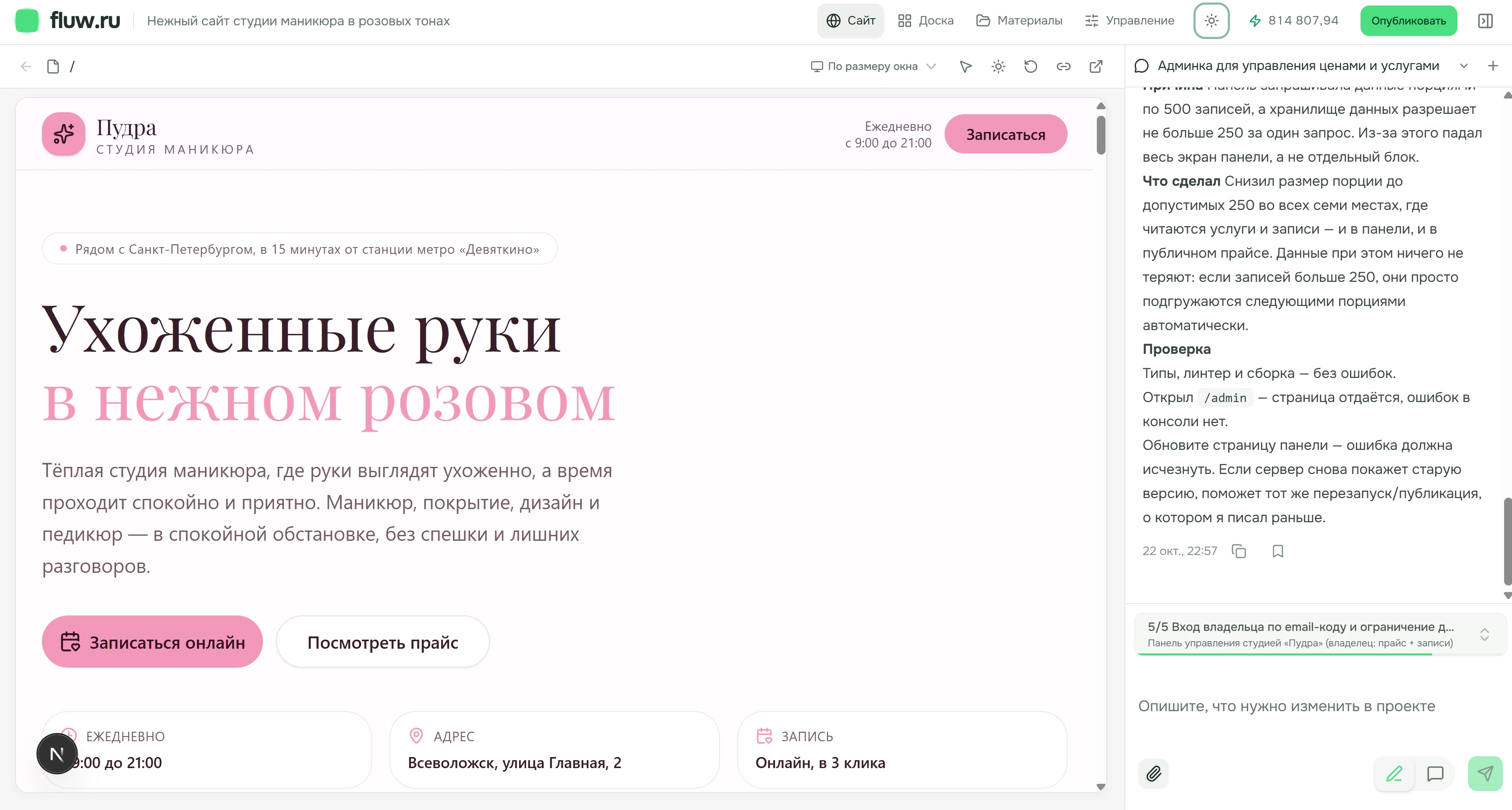
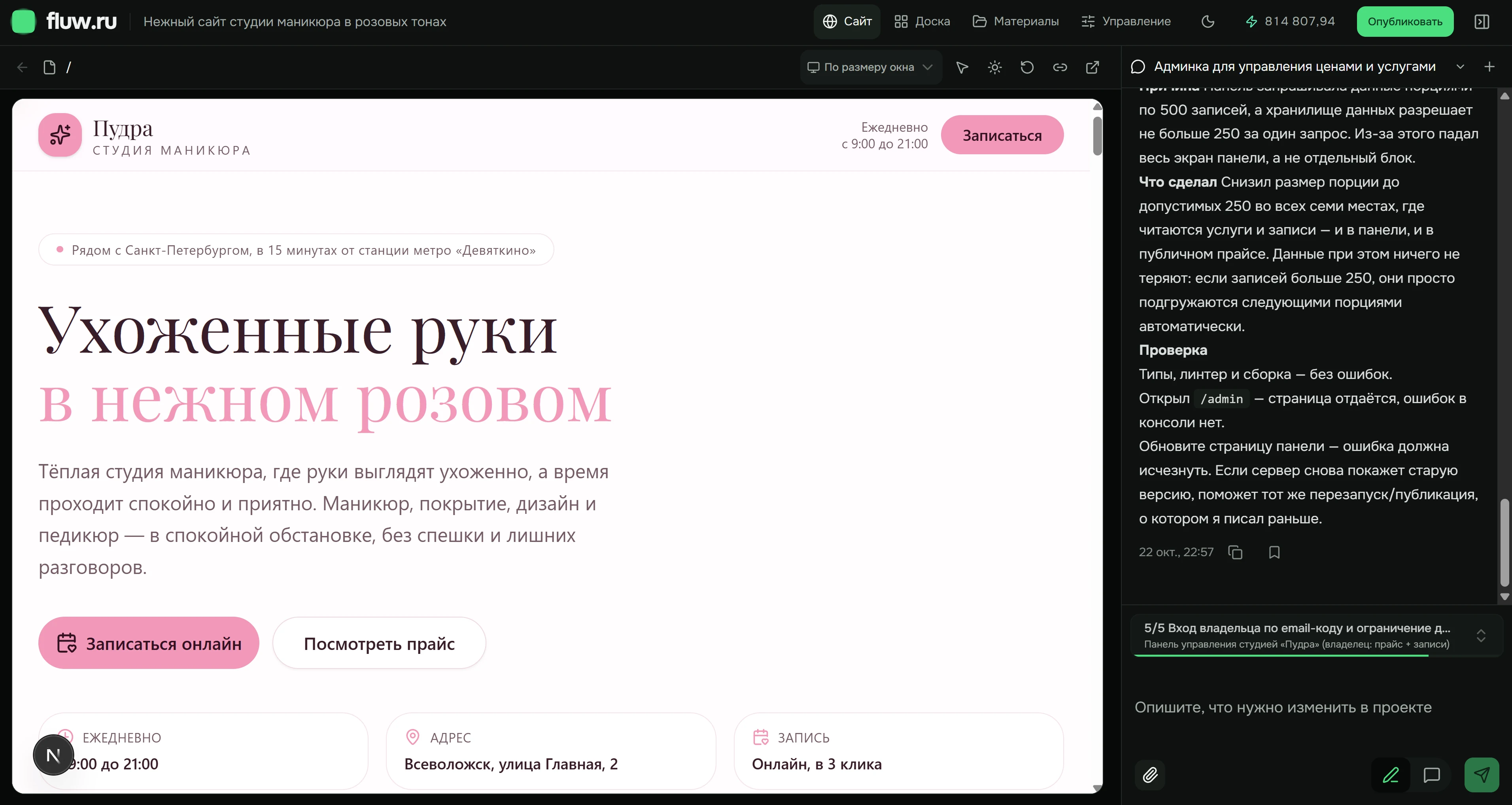
This is Pudra, a demonstration website in progress inside Fluw. The Russian interface shows the website beside the conversation about changes.
Start with a concrete brief
A useful description connects four things: your business, your visitors, the content and the next action.
Try this example for a different project — a furniture workshop.
Build a website for a furniture workshop. Show tables and shelving, materials and dimensions, using photos from my files. The main action is to request a quote. Use a calm, light design without gradients.Write a brief for your website ↓
- Who
- People choosing furniture for their home.
- What
- Tables, shelves, materials, dimensions and photos.
- Next action
- Request a quote for a specific piece.
Make it your own
Provide your copy, photos, contact details and references. Explain what must stay: service names, brand colors, section order or photography style.
Keep references, files and results in Materials, independently of any single conversation.
- Your photographs
- Your copy and service details
- Your visual references
Refine the result step by step
You do not have to get every detail right in the first prompt. Look at the result, choose one change and check it again.
“Add a delivery page”
Describe the terms, then check the new page and its navigation link.
“Show materials beside each product”
Specify the source of the specifications and review the product detail.
“Make the opening section more compact”
Compare the heading and call to action on desktop and mobile.
See the whole page. Check the smaller screen.
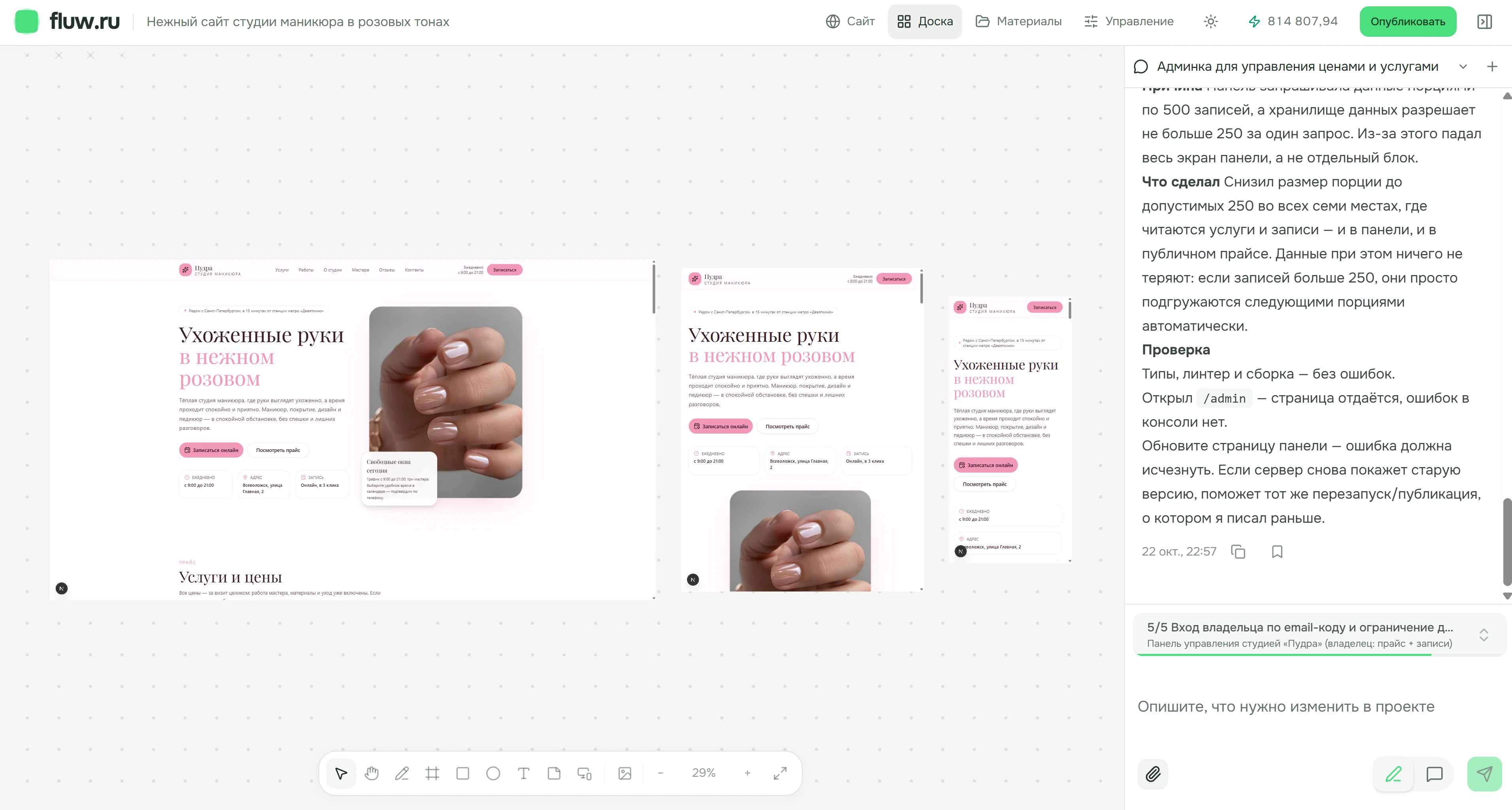
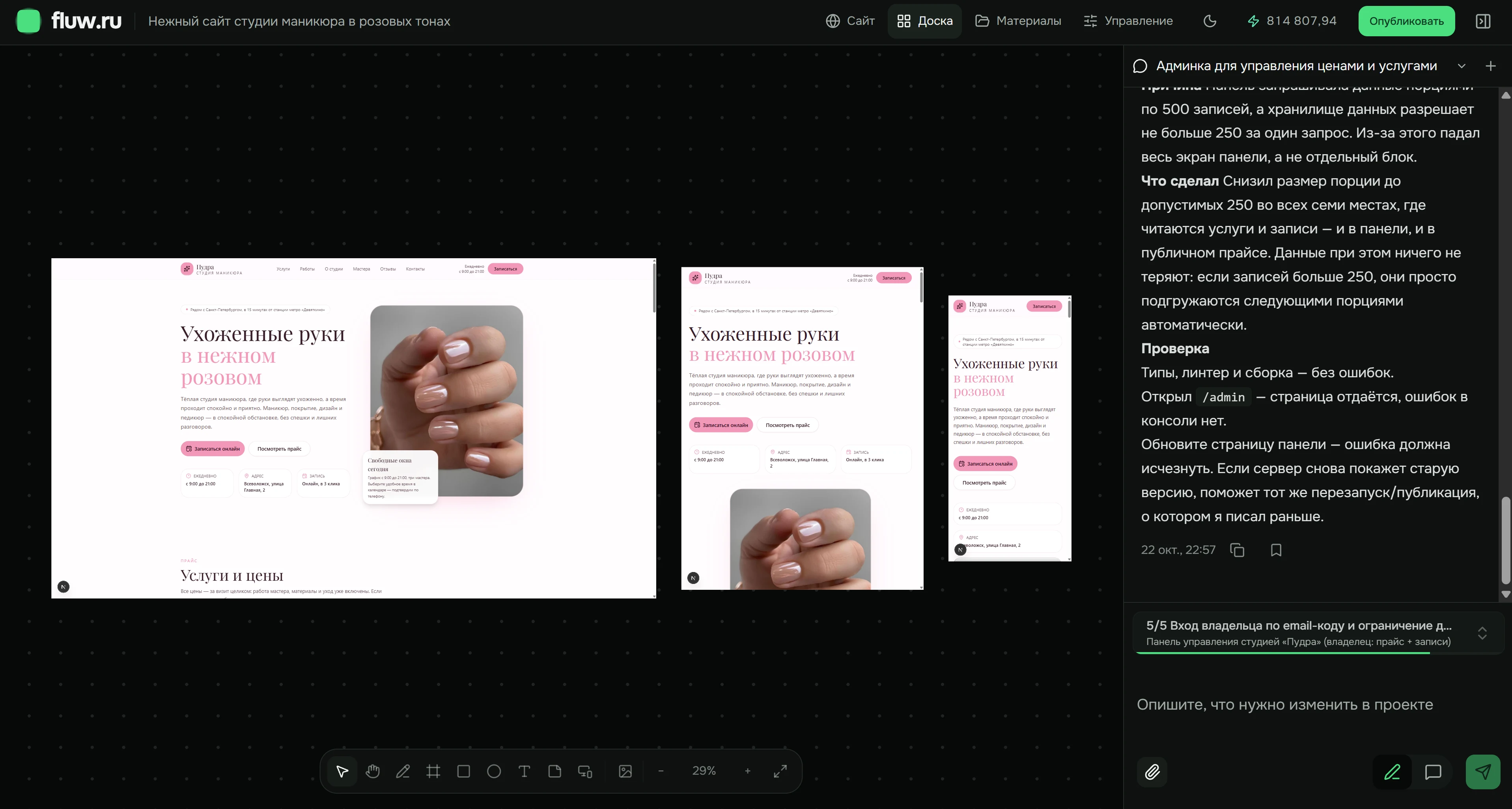
The board places different viewport sizes together. Compare headings, images and actions before moving on to the next change.
What to check before publishing
- Facts, prices, contact details and rights to your materials.
- Links, form fields, request recipient and confirmation message.
- Mobile readability and access to key actions.
Explore different outcomes
The screens above show work on the Pudra demonstration website. Explore the catalog for a different workflow: selecting a product and composing a test inquiry.
Plans and support
Choose a plan for the amount of work you expect. AI generation and changes use tokens; the current allowances and prices are shown below.
Our team is here to help you finish your project. Email us ↗ · Telegram ↗
A few practical questions
Can I use my own photos?
Yes. Upload them to Materials and say where to use them.
How do I fix a result?
Describe a specific change, then review it in the preview.
Can I build multiple pages?
Yes. Specify the purpose of each page and the navigation between them.
What remains my responsibility?
Verify factual accuracy, rights to materials and whether the workflow meets your needs before launch.
Now, your website.
Start with what you know: what you do, who the website is for and what visitors should be able to do.